Advanced
In the last step of the wizard you make advanced settings for recognition and further processing. Only change these settings if you know what they do, or after consulting Support. Incorrect settings can prevent BarcodeOCR from working properly.
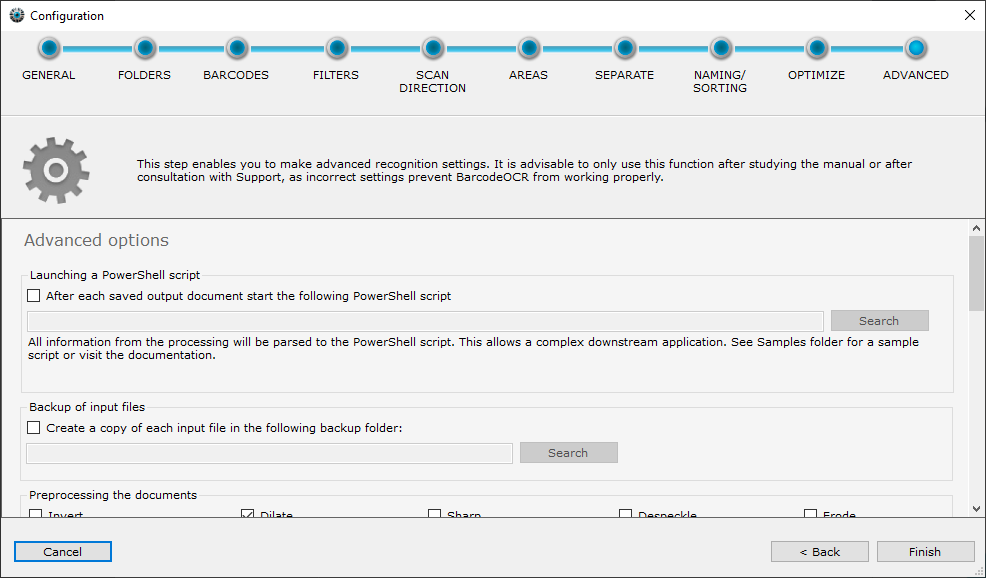
Starting a PowerShell script
Enterprise edition and higherBarcodeOCR starts a PowerShell script before or after each processed file. The script receives an extensive data structure with information about the recognition process, for example the configuration, the result and error reason, the barcode used, the target path, and the recognized text and barcodes of each page.
Several sample scripts are installed automatically. You find them in the installation folder under "Script Samples". The sample script External Application - Powershell write all parameters to file.ps1 writes all transferred information to a text file and so shows all available data fields.
How the scripts work and which data they receive is described in Scripts and interfaces, in detail under Type 4: PowerShell after processing and Type 5: PowerShell before processing.
Backing up input files
Turn on this option when you try out new processing options or a prerelease version of BarcodeOCR. Make sure your documents are processed without errors before you turn off the backup again.
Before processing, BarcodeOCR copies the input file to a backup folder and attaches a random string to the file name. This way the original file is still available after processing.
BarcodeOCR does not delete any files from the backup folder.
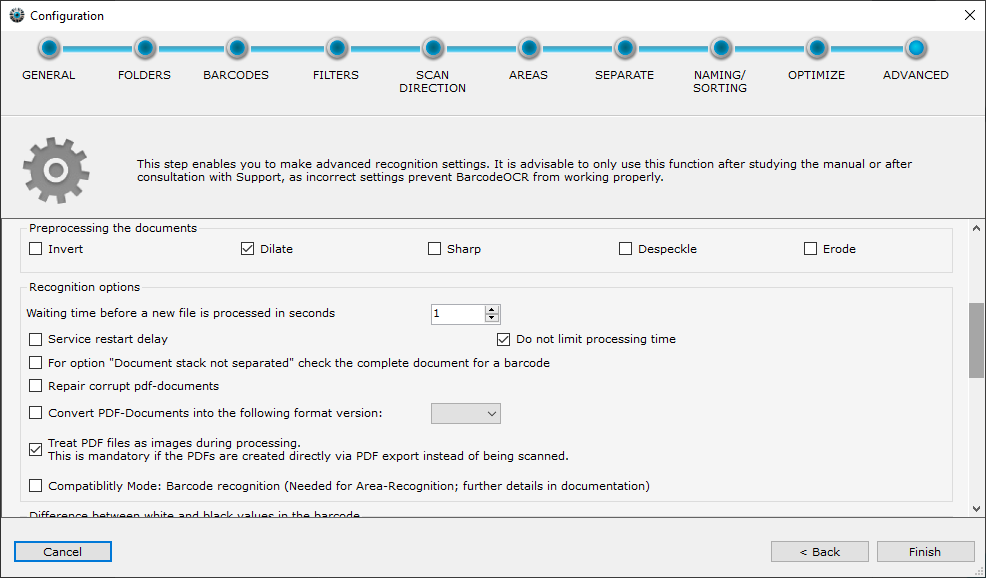
Preprocessing the documents
Various filters can improve recognition before the documents are processed. BarcodeOCR only applies the filters during processing. They do not change the document itself.
| Filter | Description | Helpful with |
|---|---|---|
| Invert | Switches black and white values. | documents with low contrast |
| Despeckle | Removes speckles and white dots from black barcode areas that can appear in a pure black and white scan. | black and white documents with strong compression, 1D barcodes with "dotted lines" |
| Dilate | Enlarges the barcode. | deformed or small barcodes |
| Erode | Shrinks the barcode. | deformed or large barcodes |
| Sharpen | Sharpens the image beforehand. | blurry barcodes |
Load balancing
If several BarcodeOCR installations should process the files from one input folder, turn on load balancing. BarcodeOCR then moves every nth file from the input folder to another folder, which a second installation watches and processes.
Never run two BarcodeOCR installations with the same input folder without this option. This leads to incorrect processing.
How to set this up is described in Distribute the load across installations.
Recognition options
Waiting time before a new file is processed in seconds
Some scanners do not save the documents only once all pages are scanned, but write temporary files with the pages scanned so far during scanning. To prevent BarcodeOCR from starting on incomplete documents, enter a waiting time here.
The value is the time in seconds that must have passed since the file was created.
Cancellation of the processing after an unusually long processing time
BarcodeOCR has a safety mechanism that sorts out files that take unusually long to process. This way a damaged file cannot hold up processing, and the following documents are still processed. The default maximum processing time per file is 60 minutes (15 minutes in older versions).
If the file was already partially processed and BarcodeOCR already saved documents in the output or error folder, these are kept. In this case BarcodeOCR copies the source file to the error folder and deletes it from the input folder.
For very large documents (many pages or high resolution) or when you use filter options, 60 minutes may not be enough:
- With Service restart delay, BarcodeOCR raises the processing time per file to 90 minutes.
- With Do not limit processing time, there is no limit.
For option "Document stack not separated" check the complete document for a barcode
The split option Document stack not separated (see Split options) only searches the first page for a valid barcode. If it finds none, BarcodeOCR moves the document to the error folder. If you turn on this option, BarcodeOCR searches the whole document for valid barcodes and saves it under the name of the barcodes it takes into account.
Fix damaged PDF files
Scanners do not always create PDF documents that comply with the standard. With this option BarcodeOCR tries to repair such files. If a document cannot be repaired, BarcodeOCR files it as "Corrupted File" in the error folder of the configuration.
Among others, BarcodeOCR applies these steps during the repair:
- Remove a possible PDF/A signature, to rule out errors with incorrectly saved PDF/A files.
- Remove metadata within the documents.
- Remove unnecessary or duplicate data streams within the PDF file.
- Restore the document structure.
Convert PDF documents into a specific format version
BarcodeOCR keeps the format version of the incoming PDF documents. If BarcodeOCR should convert them to another format version, turn on this option and select the target version. All documents of this configuration are then saved in the selected version.
View PDF files as images during processing
If the documents were not scanned but exported as a file from an application, BarcodeOCR will probably not recognize a barcode without this option. The option is also required if your scanner already saves the document as a searchable file.
If a document has multiple layers, the scanner embeds clipping masks in the PDF files, or certain optimizations were applied, this option can also lead to barcodes being recognized. See Recognize barcodes in exported PDFs.
Compatibility mode: barcode recognition
This type of recognition was used by version 4.x. BarcodeOCR creates a graphic of each page and then analyzes it. This takes considerably more time and memory. The mode may be needed for vectorized PDF files that use a barcode font and are not recognized with View PDF files as images during processing.
This mode must also be turned on for area detection, so that BarcodeOCR assigns the scan areas correctly. If you turn on area detection, BarcodeOCR activates this mode automatically. You have to turn it off by hand.
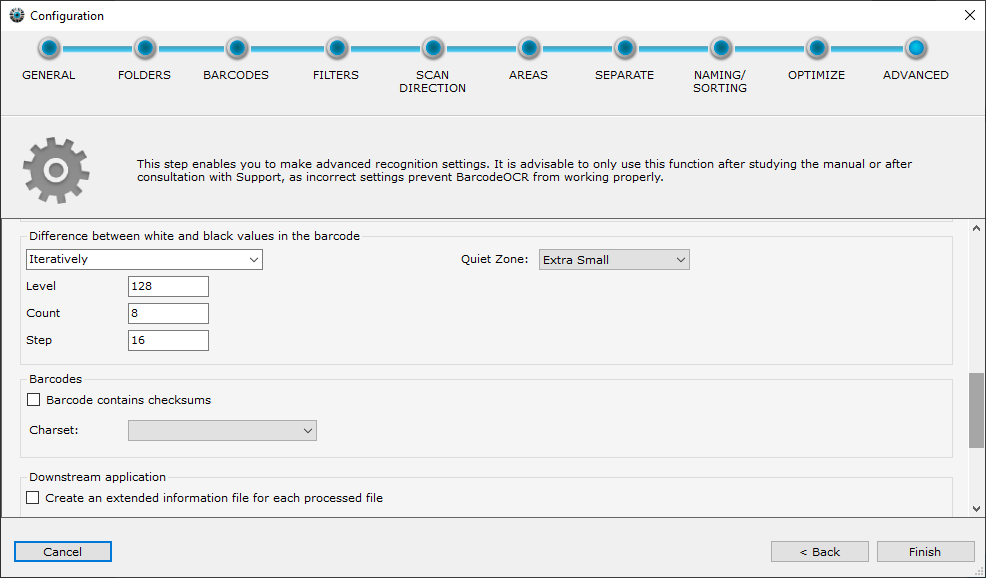
Difference between white and black values in the barcode
BarcodeOCR has to set the threshold between white and black values in the document to tell the light areas in the barcode from the dark ones. There are two options:
BarcodeOCR detects the threshold between white and black characters in the document automatically.
- Recognition starts at the threshold in the Level field (valid values 0 to 255) and attempts recognition with this setting.
- If this fails, BarcodeOCR lowers the threshold by the value in the Step field and tries again. Then it raises the threshold, starting from Level, by Step and tries once more.
- In the next run, Step is doubled. The Count field sets the number of runs.
Barcodes
Checksums and character sets refer to the text content of the barcodes.
Barcode contains checksum
With this option, BarcodeOCR removes the checksums of your barcodes from the file name.
Character set
Determines the character encoding of the output. If umlauts and other special characters are displayed incorrectly, you may need to switch to the "ISO 8859-1" character set.
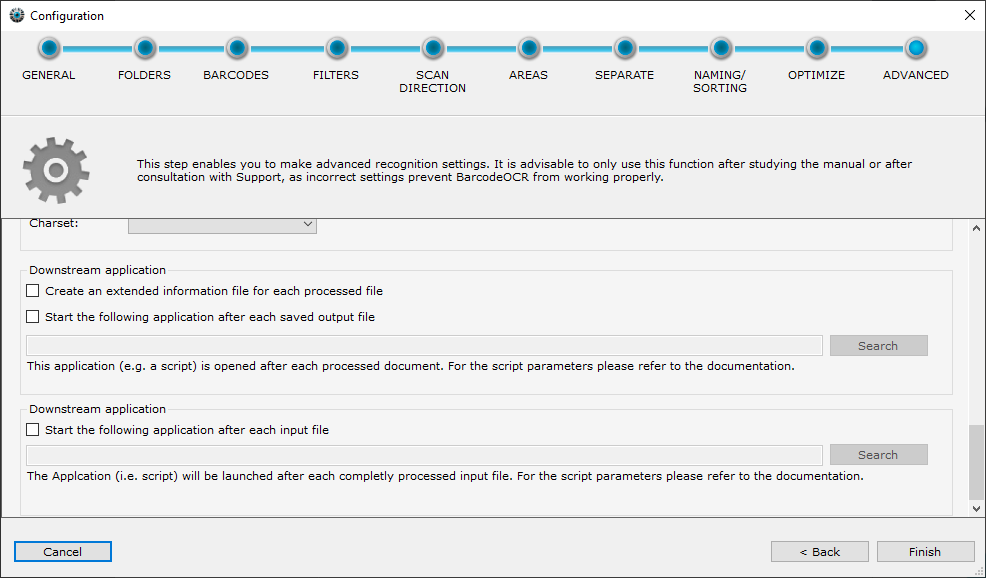
Downstream application (per output file)
BarcodeOCR can call other applications after a file has been processed, or store information about the processed files. This way you extend the processing with your own applications or scripts.
You find samples for downstream applications and subfolder scripts in the "Script Samples" folder in the BarcodeOCR installation folder. Use them as a starting point and adapt them to your needs.
Create an information file with extended barcode information for each output file
BarcodeOCR creates an information file in XML format for each output file. It contains all information about the document, for example source and target document, and text, position, format and type of the barcodes. The file is saved in the output folder, with the name of the output file and the extension .xml. For details see XML information file.
Downstream application after each recognized barcode
BarcodeOCR calls the application after each successful save in the error or output folder. If an input document results in several output documents, the application therefore runs several times. Parameters are passed to a script (.bat) or an application (.exe), among them the result, configuration, source and target file, page range, error reason and recognized barcode.
All parameters with an example are listed in Type 1: Program after each output file.
The application runs in the security context of the BarcodeOCR Windows service. Enter network paths as UNC paths here as well.
Downstream application (per input file)
Downstream application after each input file
BarcodeOCR calls the application before it deletes the input file. This is the last step in processing the document. At this point all documents are saved in the error and output folder, and the downstream application per output file has been called for each output file. The path to the source file and a list of the saved documents are passed to a script (.bat) or an application (.exe).
All parameters with an example are listed in Type 2: Program after each input file.
The application runs in the security context of the BarcodeOCR Windows service. Enter network paths as UNC paths here as well.
Finish the wizard
The service is restarted after the last step of the wizard is completed. The new configuration is active afterward.