Recognize barcodes in exported PDFs
The default settings of BarcodeOCR are optimized for scanned PDF files. If a document was not scanned but exported as a PDF from an application, BarcodeOCR therefore often does not recognize the barcode. Two options in the Advanced step of the configuration solve this problem.
Image PDF and vectorized PDF
For recognition, there are two types of PDF documents:
| Property | Image PDF file | Vectorized PDF file |
|---|---|---|
| Summary | Each page consists of one image that covers the page completely. There are no other elements on the page. | Each page can contain several different elements: text, images, forms, barcodes (as text or as an image). |
| Elements per page | Only one | None or several |
| Comparable to | A photo of text and graphics: You cannot select individual elements, only the whole page at most. Text becomes blurry when you zoom in. | A web page: You can select elements. Text stays sharp even at high zoom levels. |
How to tell that your barcodes are vectorized
Open the PDF file in a PDF reader and look closely at the barcode.
- Parts of the barcode look different.
- The barcode is offset in some places.
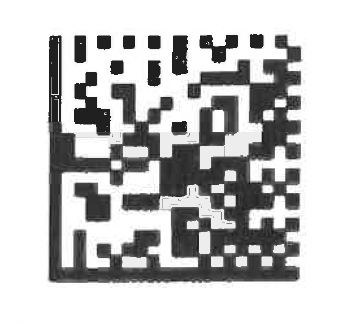
In this example, certain areas are noticeably darker and sharper than the rest (marked in red):
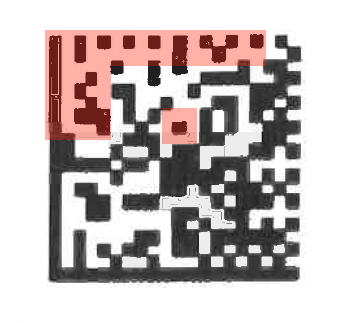
Another sign: You can select some areas of the barcode, but not others.
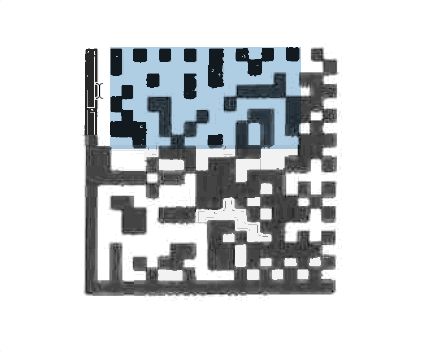
Why the barcode is not recognized
The default configuration of BarcodeOCR is optimized for image PDF files and therefore reads only one layer. As a rule, vectorized PDF files are not recognized this way, because the barcode can be spread over several layers. BarcodeOCR then sees only a small part of the barcode at most, which is incomplete and therefore unreadable.
A screenshot of the barcode or a test with a QR code scanner on a smartphone does not show whether BarcodeOCR can read the barcode. The PDF reader has already combined all layers and displays the barcode correctly.
Solve the problem
BarcodeOCR offers two options for recognition. You set them per configuration in the Advanced step.
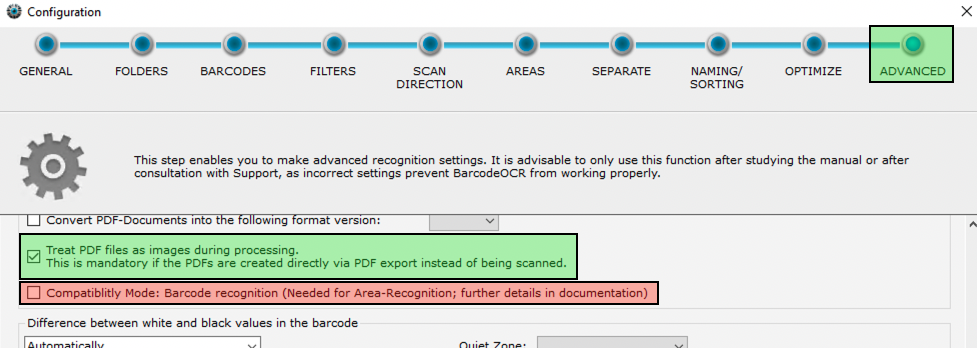
Marked in green in the screenshot. Try this option first. For most documents it is enough: BarcodeOCR then reads all layers.
The option is required if the documents were not scanned but exported as a file from an application. It is also required if your scanner already saves the document as a searchable file. If the documents have several layers, if the scanner embeds clipping masks in the PDF files or if certain optimizations were applied, this option can also lead to the barcodes being recognized.
Marked in red in the screenshot. If the first option does not help, use this one instead. BarcodeOCR then creates an image of each page and analyzes it. This takes considerably more time and memory.
The mode is also linked to scan area recognition. For details, see Advanced.