Text recognition and optimization
In this step you improve your PDF documents, for example with text recognition. You also decide whether BarcodeOCR rotates pages, removes blank pages, reduces the file size, converts to PDF/A, signs or encrypts the files.
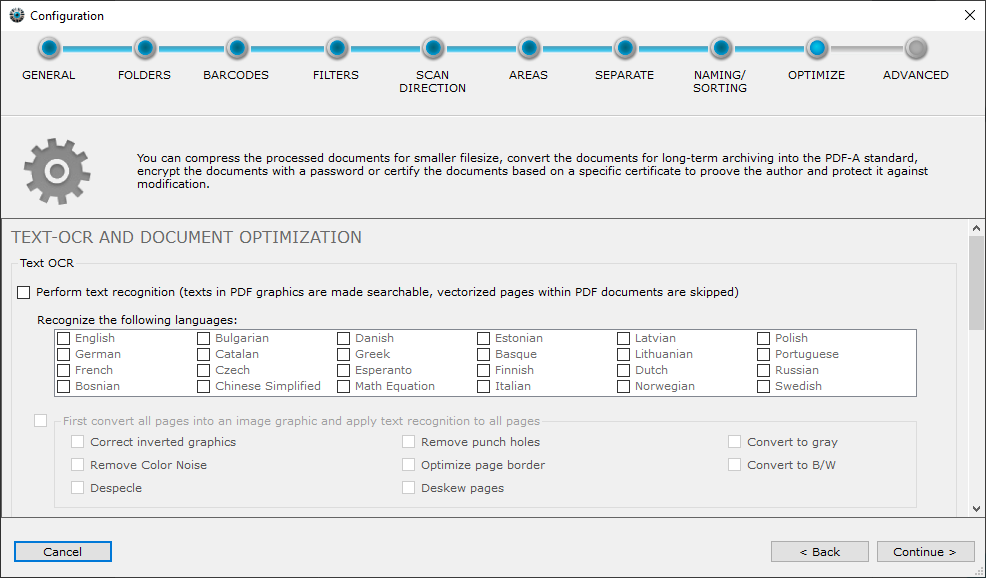
Perform text recognition
Small Business Plus edition and higherIf this option is turned on, BarcodeOCR searches scanned image pages for text and places the text invisibly over the image. This makes the page searchable.
You can then search the documents for text and jump to the hits. If you use an indexing system (document management system, Windows Explorer or similar), you can also search several files at once.
BarcodeOCR analyzes all incoming PDF documents and makes them searchable. This also applies to pages that later end up in the error folder. Text recognition only runs on "image-only" pages. Vectorized pages are skipped.
Text recognition must modify the individual pages. BarcodeOCR therefore automatically removes any signatures and PDF/A certifications from the document first.
BarcodeOCR supports multiple languages. Under Recognize the following languages, select the languages you want to recognize. The more languages you select, the more this affects the processing speed.
First convert all pages into an image graphic and apply text recognition to all pages
If vectorized pages should also be searched for text, turn on this option. BarcodeOCR then converts the incoming document into an image and runs text recognition on all pages.
With this option you can also apply various optimizations. They change the source image.
Image cleanup
Enterprise edition and higher| Option | Description |
|---|---|
| Correct inverted graphics | Corrects inverted colors (black background, white text). |
| Despecle | Removes image noise. |
| Remove punch holes | Removes "black" holes at the edges. |
| Optimize page border | Optimizes frayed image edges or scan errors caused by wavy paper. |
| Deskew pages | Corrects pages that the scanner fed in slightly skewed and straightens them. |
Remove color noise
Remove Color Noise removes image information and reduces the number of colors and grayscales used, to achieve better compression.
Convert to grayscale or black and white
Small Business Plus edition and higher| Option | Description |
|---|---|
| Convert to gray | Converts the document to grayscale. |
| Convert to B/W | Converts the document to black and white. |
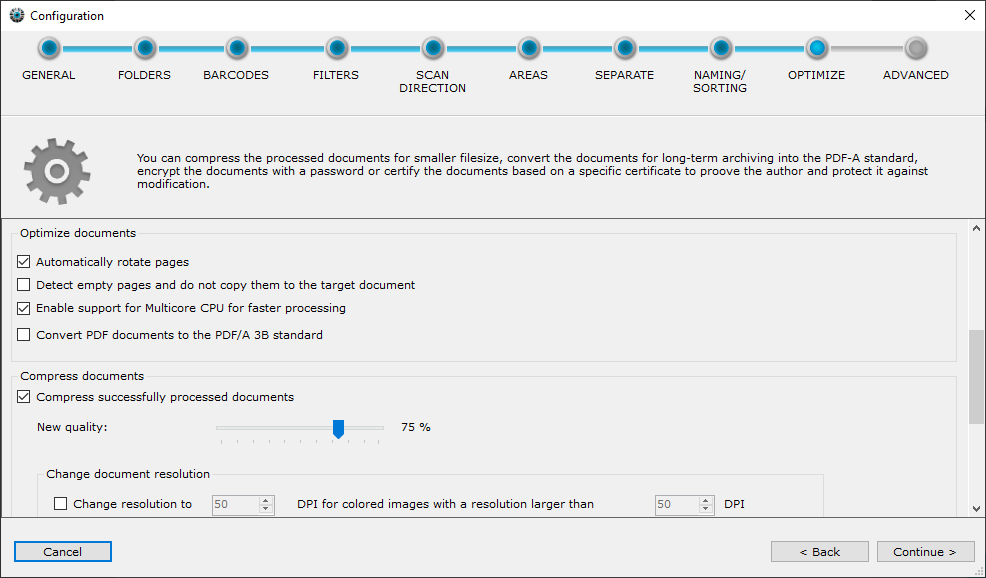
Rotate pages automatically according to the font direction
Small Business Plus edition and higherIf this option is turned on, BarcodeOCR rotates individual pages of the document by 90°, 180° or 270°. You then don't need to rotate individual pages in the batch by hand to make them readable.
BarcodeOCR applies this option after barcode recognition. The scan direction of the barcodes is therefore evaluated before the automatic rotation.
Remove blank pages from scanned documents
Standard edition and higherBarcodeOCR can automatically remove pages with little image information during processing. For each page it determines a factor that describes how much image information is present. If there is too little, BarcodeOCR does not add the page to the target document and deletes it. The preset value is 0.02.
You can calibrate the value per configuration with a sample scan that contains blank pages. BarcodeOCR analyzes all pages of the selected PDF document and determines the value for each page. The lowest value is then set as the new threshold. You can also adjust it by hand. BarcodeOCR does not add pages with a lower factor to the target document and deletes them.
Support for multiple processor cores for faster processing of documents
Standard edition and higherWith this option BarcodeOCR makes better use of multiple processor cores. It automatically uses up to 16 processor cores.
PDF/A
Standard edition and higherIf your PDF documents are to be archived long-term, turn on this option. You also select the standard BarcodeOCR converts the files to:
- PDF/A-1u
- PDF/A-1b
- PDF/A-2a
- PDF/A-2u
- PDF/A-2b
- PDF/A-3a
- PDF/A-3u
PDF/A files are usually larger, because fonts and other metadata are stored in the document.
Compress PDF documents
Standard edition and higherBarcodeOCR reduces the quality of the graphics in the documents to reduce the file size. Based on the current graphics quality, you reduce the graphics by a certain percentage. Depending on the graphics format, a quality of 75 to 90% is a good compromise between image quality and file size. How much a document can be compressed depends on the embedded graphics. The compression is lossy: image information is removed from the graphics.
Change document resolution
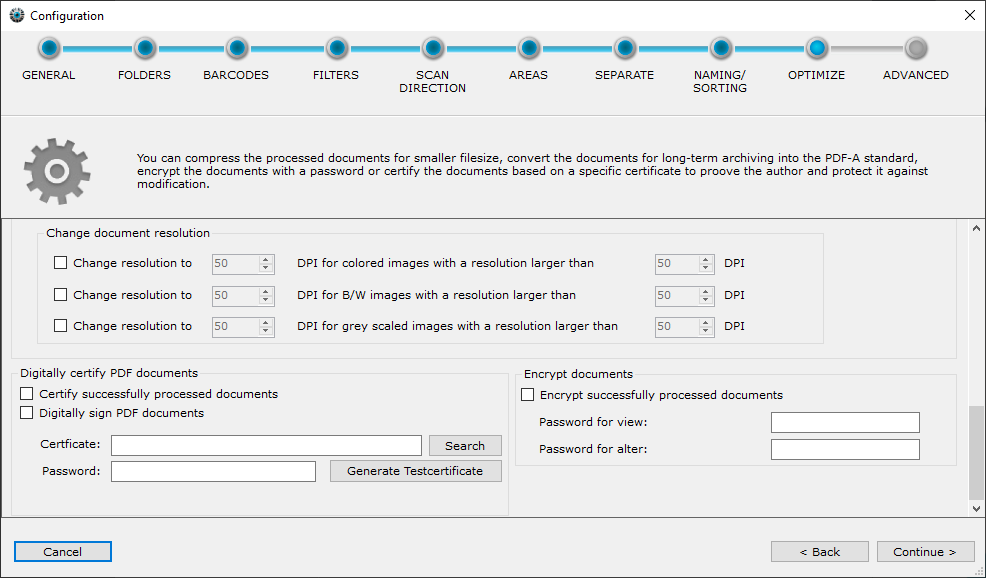
Your scanner scans the documents at a certain resolution, for example 200 or 300 DPI. The higher the resolution, the better BarcodeOCR recognizes the barcodes and the larger the files become. If you need a high resolution for reliable barcode recognition but don't want to archive the documents at that resolution, you can reduce it.
This has a significant effect on the file size. You can set the resolution separately by type (color, grayscale or black and white) and define the resolution above which the reduction applies.
Digitally sign and certify PDF documents
Enterprise edition and higherWith a digital certificate, PDF documents receive an invisible digital signature when they are saved in the output folder. You can still annotate or edit the document afterward. The signature is then no longer valid, however, because the document was modified. With the signature, the original version of the document can be displayed again.
You need an X.509 certificate with the corresponding private key in a PKCS#12 file (for example .p12 or .pfx). The certificate can be self-created or purchased from a certificate authority (CA). The signature is embedded with the SHA-1 signature algorithm.
- To use an existing certificate, click Search and select the certificate.
- Enter the password to open the certificate file. The password is mandatory. BarcodeOCR checks it when you click Next >. If the password is wrong or the certificate is not suitable for the digital signature, you receive a message.
For testing, you can generate a compatible test certificate. To do this, click Generate test certificate.
You can also add a timestamp from a timestamp server to the signature. Timestamp servers that comply with the RFC 3161 standard are supported. If the timestamp server requires credentials, you can store them as well.
Encryption
Enterprise edition and higherBarcodeOCR can encrypt documents with secure symmetric AES encryption. To do so, define a password for opening the document (read mode) and a password for write mode. The write mode password also allows removing the encryption. BarcodeOCR then saves the documents in the output and error folder encrypted.
When you open the file in your PDF viewer, you are asked for the password. The content is only displayed after you enter the password.
BarcodeOCR cannot process encrypted documents. If you put an encrypted file into the input folder of a configuration, BarcodeOCR moves it to the error folder without processing it. See The error folder.