Naming and sorting
In this step you define the convention BarcodeOCR uses to name the output documents. You can also sort the documents into subfolders, replace text in the file name and decide what happens when file names are the same.
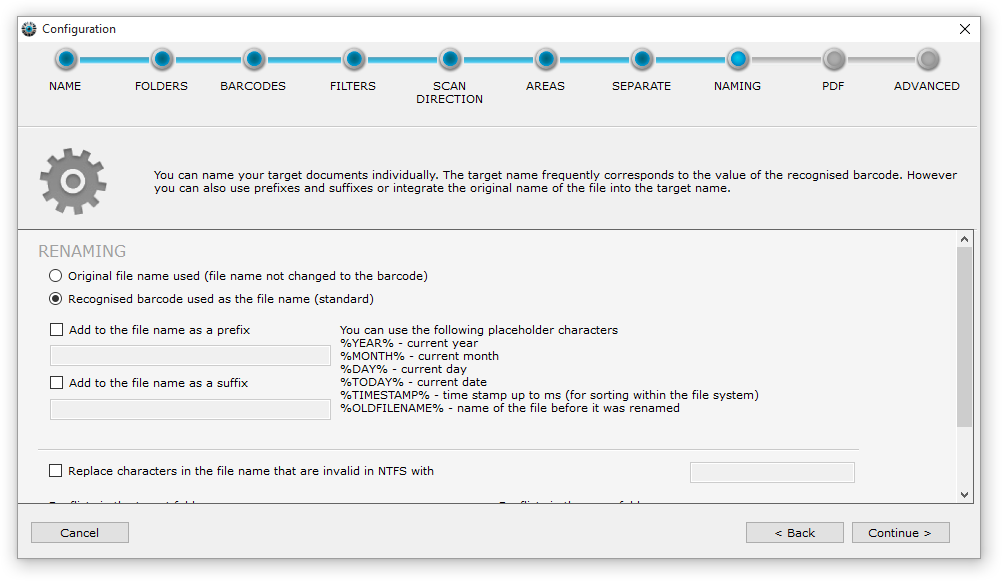
Selection of the file name
BarcodeOCR only splits the document and does not rename it based on the barcodes. The output documents keep the original file name.
BarcodeOCR names the document after the recognized barcode.
Additional naming options
Puts the characters you enter at the beginning of the file name. You can use placeholders.
Puts the characters you enter at the end of the file name. You can use placeholders.
These characters are invalid in file names on the NTFS file system: / ? < > \ : * | ". In the text box you define the character BarcodeOCR replaces them with. If you leave the box empty, BarcodeOCR removes the invalid characters.
Without this option, BarcodeOCR cannot create a file with this name. The file then ends up in the error folder as "Naming Error".
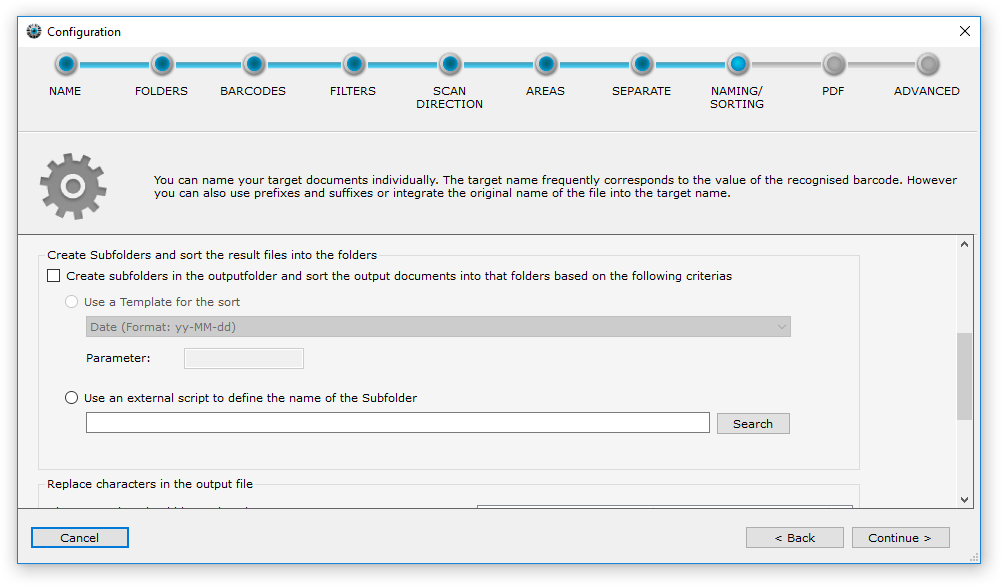
Create subfolders and sort the result files
BarcodeOCR can create a folder structure in the output folder and sort the output files into it. BarcodeOCR creates missing subfolders automatically during processing. The result file is then saved in that folder with the intended file name.
To do this, turn on Create subfolders in the outputfolder and sort the output documents into that folders based on the following criterias and choose one of the two options.
Use a template for the sort
Standard edition and higherA template covers many use cases. For some templates you adjust the result to your needs with the Parameter field.
In the examples, the subfolder is the part between Outputfolder\ and the file name.
| Template | Parameter | Sample barcode | Result |
|---|---|---|---|
| Date (Format: yy-MM-dd) | no parameter needed | INVOICE-1234 | Outputfolder\2017-07-12\INVOICE-1234.pdf |
| Date (Format: MM-dd) | no parameter needed | INVOICE-1234 | Outputfolder\07-12\INVOICE-1234.pdf |
| Date (Format: MM-dd-HH) | no parameter needed | INVOICE-1234 | Outputfolder\07-12-19\INVOICE-1234.pdf |
| Day (dd) | no parameter needed | INVOICE-1234 | Outputfolder\07\INVOICE-1234.pdf |
| Hour (HH) | no parameter needed | INVOICE-1234 | Outputfolder\19\INVOICE-1234.pdf |
| Subfolder based on delimiter | delimiter, for example @ | INVOICES@2017@004 | Outputfolder\INVOICES\2017\004\INVOICES@2017@004.pdf |
| Custom Date Format | date format, for example yyyyMMddHHmmss | INVOICE-1234 | Outputfolder\20170712191045\INVOICE-1234.pdf |
| Use the first X characters from barcode as subfolder | number of characters, for example 7 | INVOICE-1234 | Outputfolder\INVOICE\INVOICE-1234.pdf |
| Use the last X characters from barcode as subfolder | number of characters, for example 4 | INVOICE-1234 | Outputfolder\1234\INVOICE-1234.pdf |
Use an external script to define the name of the subfolder
Enterprise edition and higherThe templates may not cover complex folder structures. In these cases you can use a PowerShell script that defines the folder structure and the file name. BarcodeOCR calls the script during processing, before the document is saved. It passes all information about the processing to the script as variables.
The script can evaluate this information without restrictions and returns the folder path and the file name to BarcodeOCR. BarcodeOCR then uses them when it saves the file.
With a script you can, for example:
- Sort documents into subfolders based on the recognized text (a sample script is included in the "Script Samples" folder).
- Sort invoices into an "Invoices" folder, receipts into a "Receipts" folder and all other documents into a "Miscellaneous" folder, based on a specific text in the barcode (a sample script is included in the "Script Samples" folder).
- Determine a subfolder with your own algorithm (using all the options PowerShell offers).
- Set the file name independently of the folder.
- Create several nested subfolders.
- Use barcodes that were recognized but excluded by a filter as the subfolder.
- Cover many other requirements.
The structure, parameters and return values of the script are described in Type 3: PowerShell during processing.
You find samples for downstream applications and subfolder scripts in the "Script Samples" folder in the BarcodeOCR installation folder. Use them as a starting point and adapt them to your needs.
PowerShell scripts must be signed, or you must adjust the execution policy (ExecutionPolicy) first. Otherwise BarcodeOCR cannot run the script. It then writes an entry to the error log and does not save the output files in the path you defined. How to set the policy is described in Prepare PowerShell.
Replace text in the output file name
You can replace strings within the barcodes with another string or with placeholders.
- Enter the text to find, for example
INV-. - Enter the text to replace it with, for example
INVOICE-. - Click Add to list to apply the replacement.
You can save several replacements. BarcodeOCR processes them in the order shown. To delete a replacement, click the entry and then Remove from list.
Examples
| Find | Replace with | Barcode text | After replacement |
|---|---|---|---|
INV- | INVOICE- | INV-12345 | INVOICE-12345 |
DATE | %TODAY% | SCAN-DATE | SCAN-01.01.16 |
Invoice | (empty) | Invoice5678 | 5678 |
All available placeholders are listed under Placeholders.
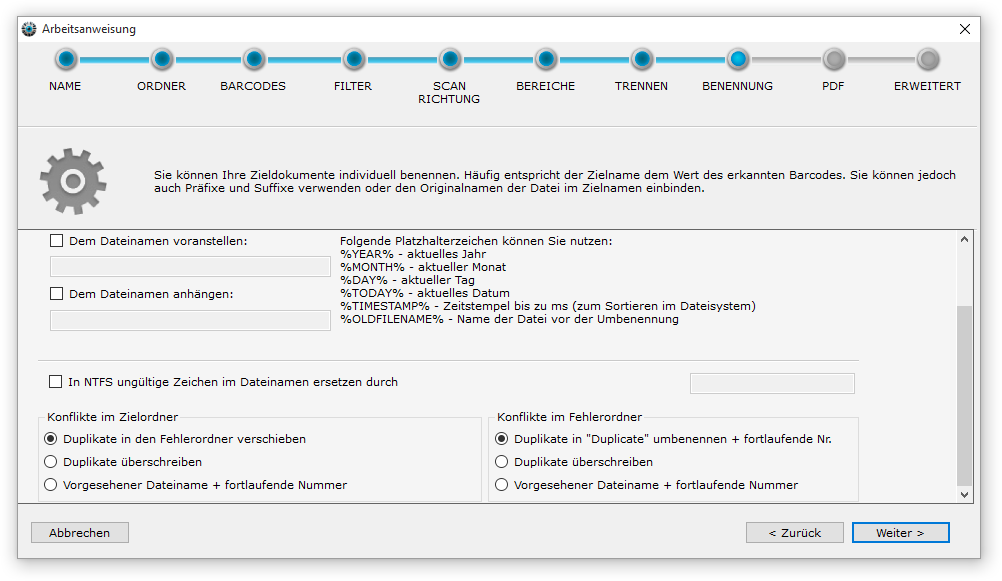
Conflict resolution
Conflicts in the target folder
If a conflict arises when saving, for example because a barcode appeared twice in a batch, you have the following options:
The document is filed in the error folder with the name "Duplicate".
The new document overwrites the existing file in the target folder without further checks.
The document is filed under the intended name. BarcodeOCR attaches a consecutive number so that the file name stays unique.
BarcodeOCR attaches the pages to a PDF document that already exists in the output location. If there is no target document yet, it is created.
Conflicts in the error folder
If a conflict arises when saving to the error folder, you have the following options:
The document is renamed "Duplicate" and given a consecutive number, so that the file name stays unique.
The new document overwrites the existing file in the error folder without further checks.
The document is filed under the intended name. BarcodeOCR attaches a consecutive number so that the file name stays unique.
What files in the error folder mean and what you can do about them is described in The error folder.