KWP
The KWP edition of BarcodeOCR is available from our partner KWP. An overview of the partner editions is available on the website.
This page describes how to set up a configuration for a KWP environment. To make sure the barcodes are recognized reliably, also follow the advice under Barcode design and scan quality, in particular on the size and clearance of Data Matrix barcodes.
Set up the configuration
First create a new configuration. Then apply the following settings in the individual steps of the wizard.
1. Name
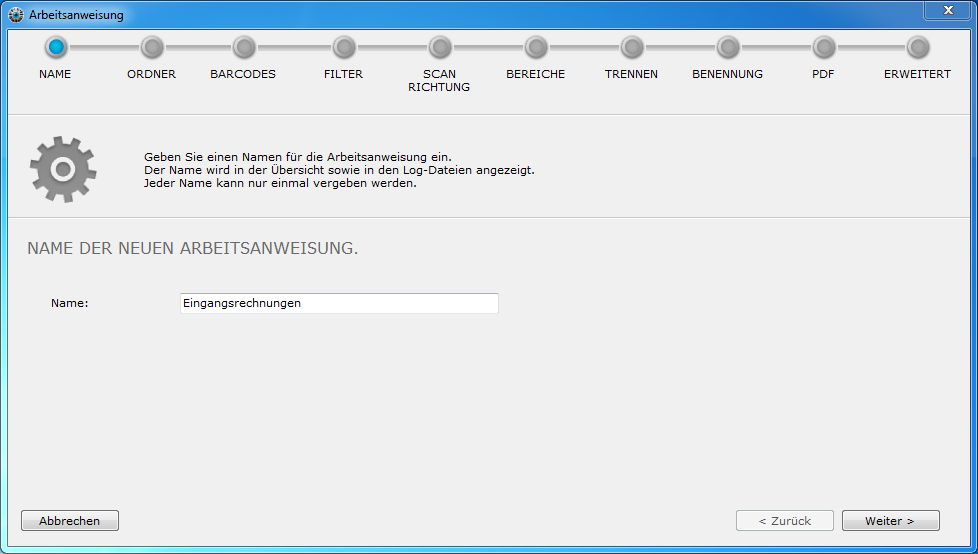
Give the new configuration a self-explanatory name. See also General.
2. Folders
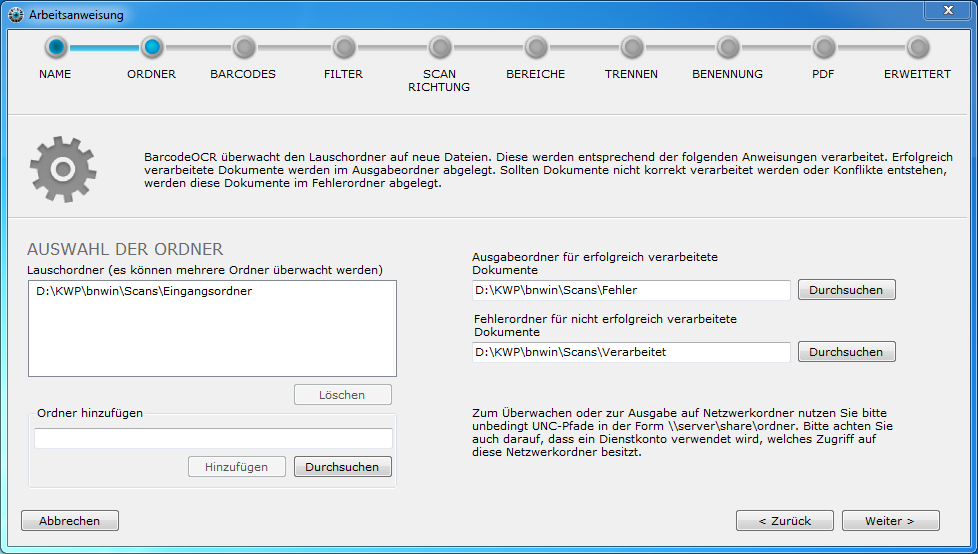
Select the folders:
- Input folder: where the scanner saves its files.
- Output folder: the folder from which KWP Archiv imports the documents.
- Error folder: problem documents are stored here. The customer must check this folder regularly.
See also Folders.
3. Barcodes
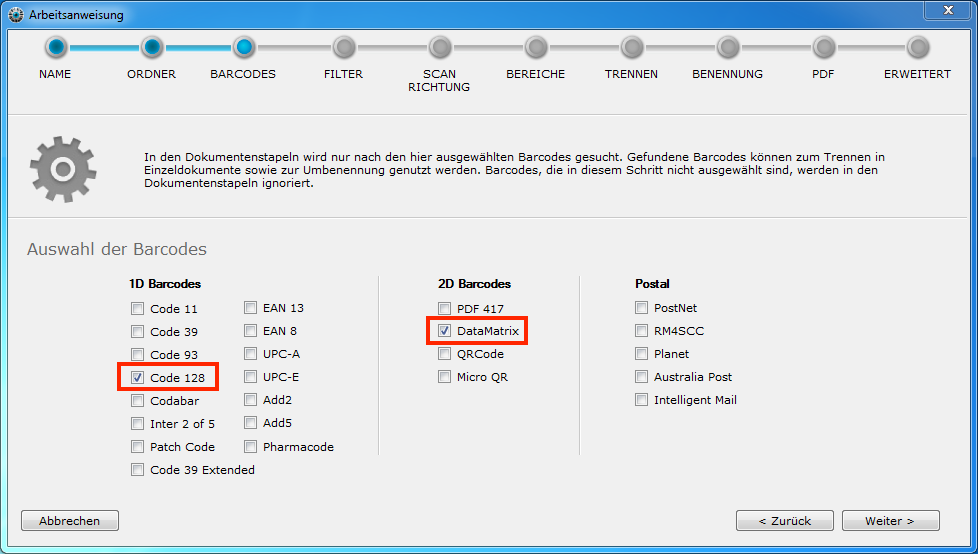
Select the barcodes in use. As a rule, this is DataMatrix, or Code 128 if it is used:
- Code 128 (1D barcode)
- DataMatrix (2D barcode)
Only select the barcodes that are actually used. Each additional barcode increases the recognition time. See also Barcodes.
4. Filter
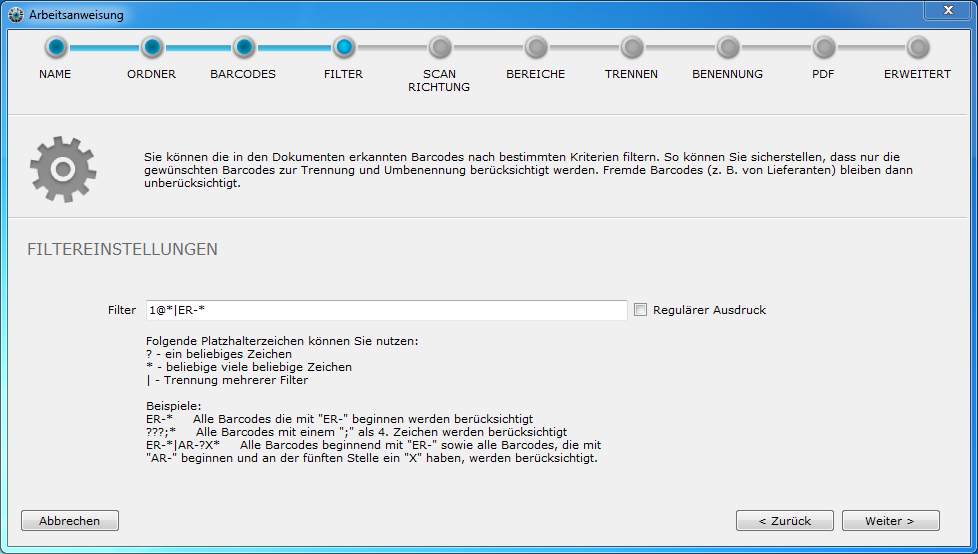
Many documents now contain barcodes from upstream suppliers. These cause documents to be named incorrectly. Therefore, set a filter that defines which character strings are taken into account at all.
Common filters for KWP environments are, for example:
| Filter | Description |
|---|---|
1@* | All barcodes that start with "1@", followed by any number of any characters |
?@* | All barcodes that start with any character, have an "@" in position 2 and are followed by any number of any characters |
ER-* | All barcodes that start with "ER-", followed by any number of characters |
ER-?????? | All barcodes that start with "ER-", followed by exactly 6 characters of any kind |
Separate multiple filters with the | character, for example 1@*|ER-*.
If the barcode is structured differently, adjust the filter. For experts: regular expressions can also be used. Examples are available under Filter.
5. Scan direction
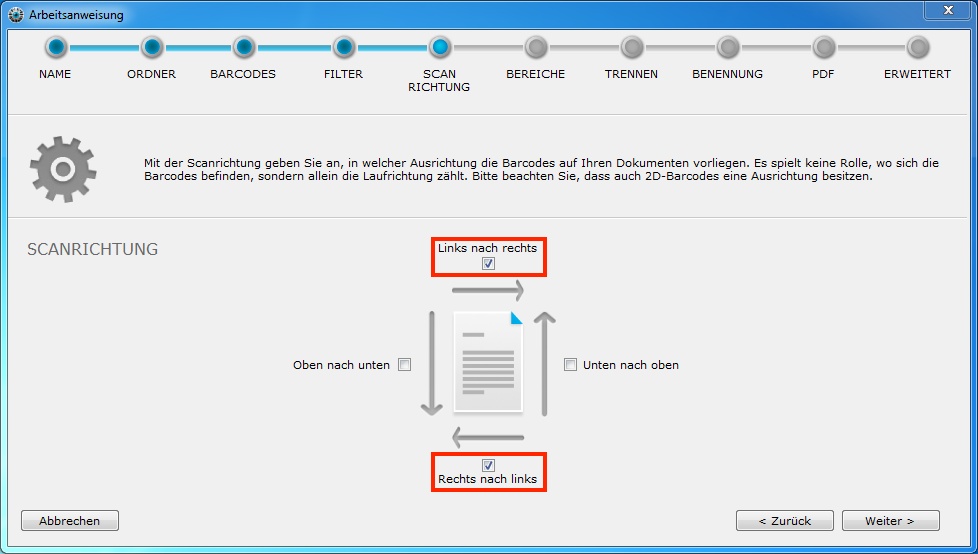
The orientation of the barcodes depends on how the barcode is applied to the documents and how the scanner feeds them. As a rule (label not rotated, A4 scanned in portrait), the barcode can be read from left to right. In this case, we recommend also activating right to left. This way, documents that were inserted the wrong way round are recognized as well.
In general, the complete process runs once for each direction. Two directions take twice as long as one. The more reliably the scanning process ensures the orientation of the pages, the fewer scan directions you need to activate and the faster processing is. If the customer scans "at random", you can also activate all four directions. Apart from a longer processing time, this has no disadvantages.
See also Scan direction.
6. Scan areas
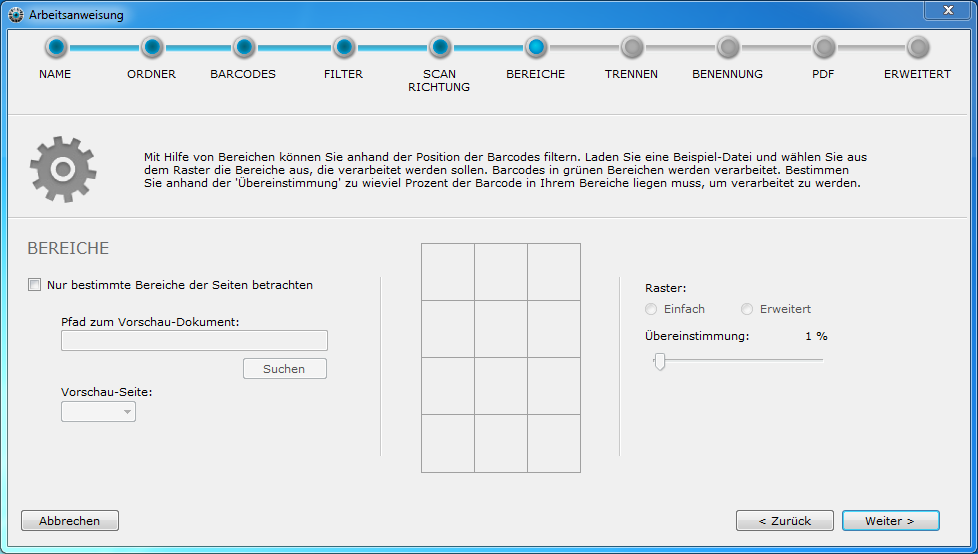
Recognition can be limited to certain areas of a page if barcodes cannot be told apart with the filters. This is typically not active in a KWP installation. See also Scan areas.
7. Split options
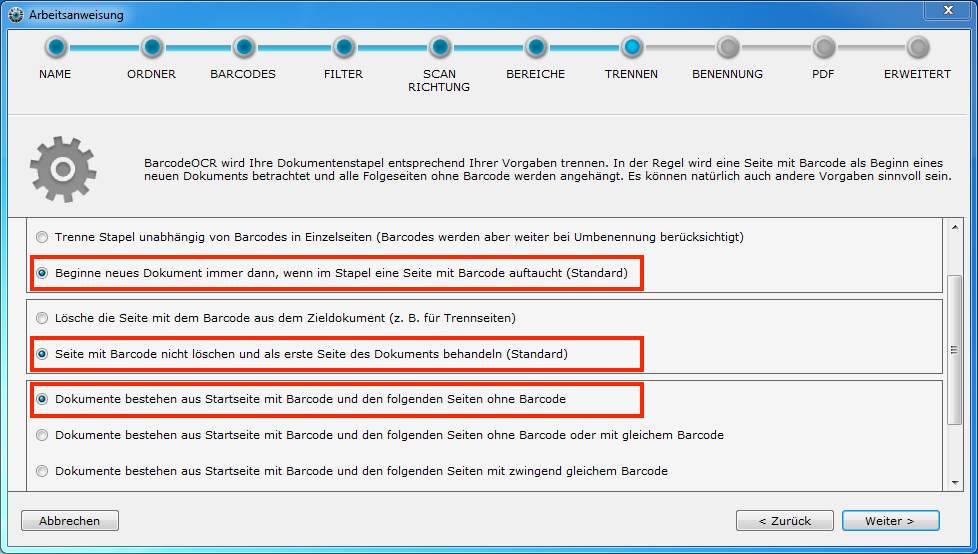
As a rule, a new document starts with a recognized barcode and includes all following pages up to the next barcode. To achieve this, select (preset as the default):
- Always begin a new document when a page with barcodes appears in the stack
- Do not delete page with barcode and treat as first page of the document
- Documents comprise a start page with barcode and the subsequent pages without barcode
If you work with separator sheets, you may need to adjust these settings, see Work with separator sheets. All options are described under Split options.
8. Naming
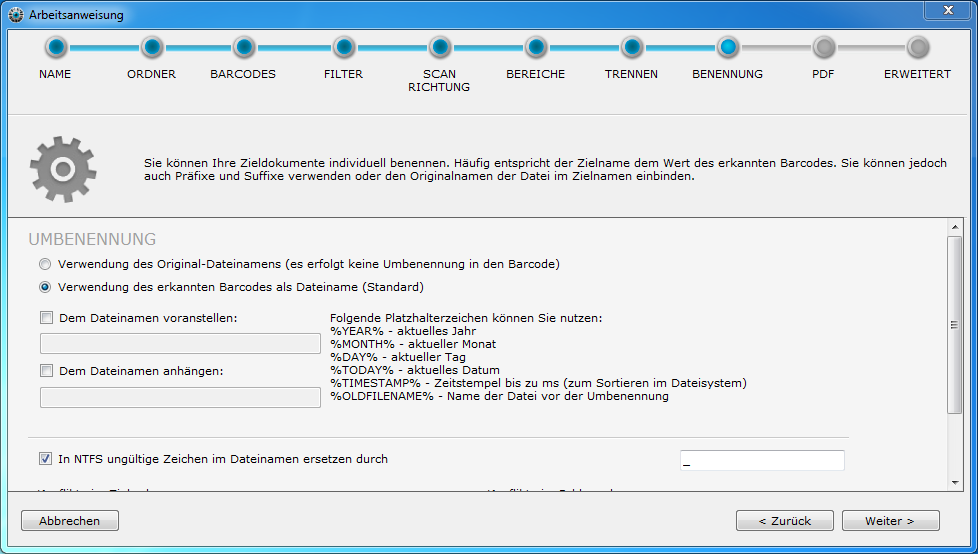
If the barcode contains characters that are not allowed in a file name on the NTFS file system, you must replace them with another character. This is necessary, for example, if the barcode contains a :. Use the Replace characters in the file name that are invalid in NTFS with option. See also Naming and sorting.
9. PDF
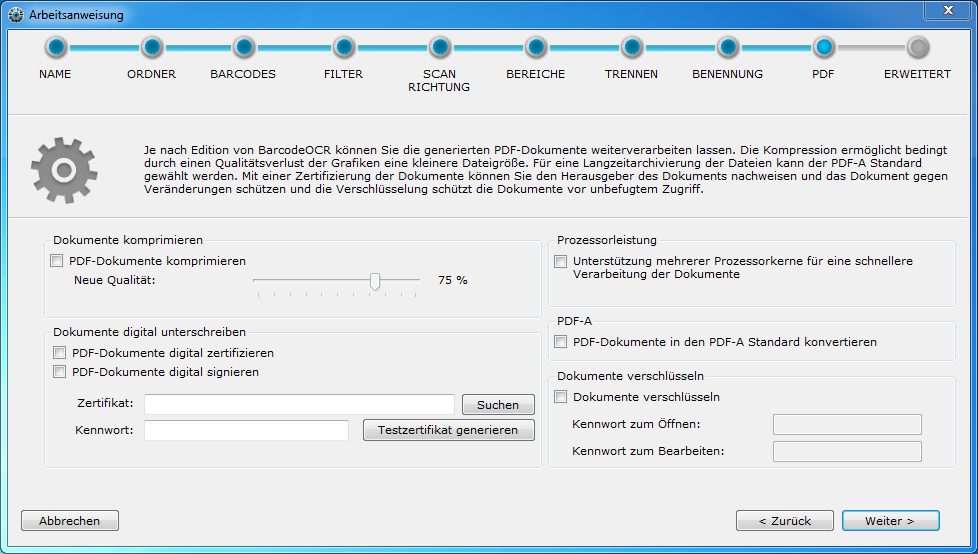
The options in this step are not included in the current KWP edition. No selection is needed here.
10. Advanced
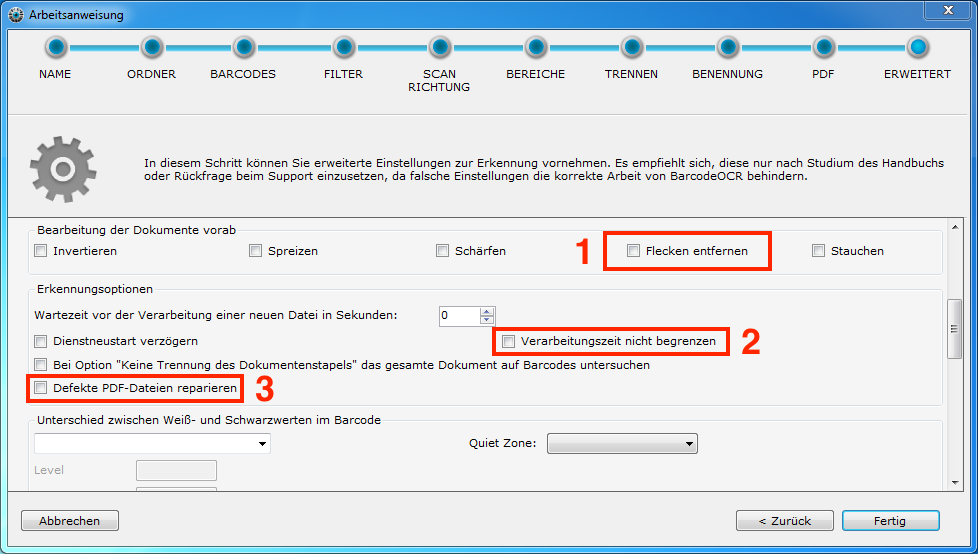
The advanced options help if barcodes are not recognized, and as first aid for faulty files:
- Despeckle: Turn on if the barcode is not recognized cleanly or the barcode quality is poor.
- Do not limit processing time: Turn on if the document batches are large, or if option 1 is active and the processing time per file may exceed 15 minutes.
- Fix damaged PDF files: Turn on if the scanner's PDF files do not comply with the PDF standard. This may allow processing of files that would otherwise end up in the error folder as
Corrupt_File.
See also Advanced.
Move to another system
How to transfer BarcodeOCR, including configurations and license, to another computer is described in Move to another computer.
Open a support case
The information support needs is listed under Contact support. Include the end customer's serial number.