Trial version and first start
You can try out BarcodeOCR as a trial version before you buy it. On first start, you set up the service and can create a sample configuration that lets you test the features right away.
Trial version
You can use BarcodeOCR as a trial version for 30 days. During this period, a watermark appears on the processed documents.
The entire range of functions of BarcodeOCR is available in the trial version. Once the trial period has expired, the application can no longer be started. You can then only activate it by entering a valid serial number (see Activate your license).
The application shows how many days of the trial period remain.
First start
The first time you start BarcodeOCR, you can configure the service for network processing, create a sample configuration and optionally activate a trial serial number.
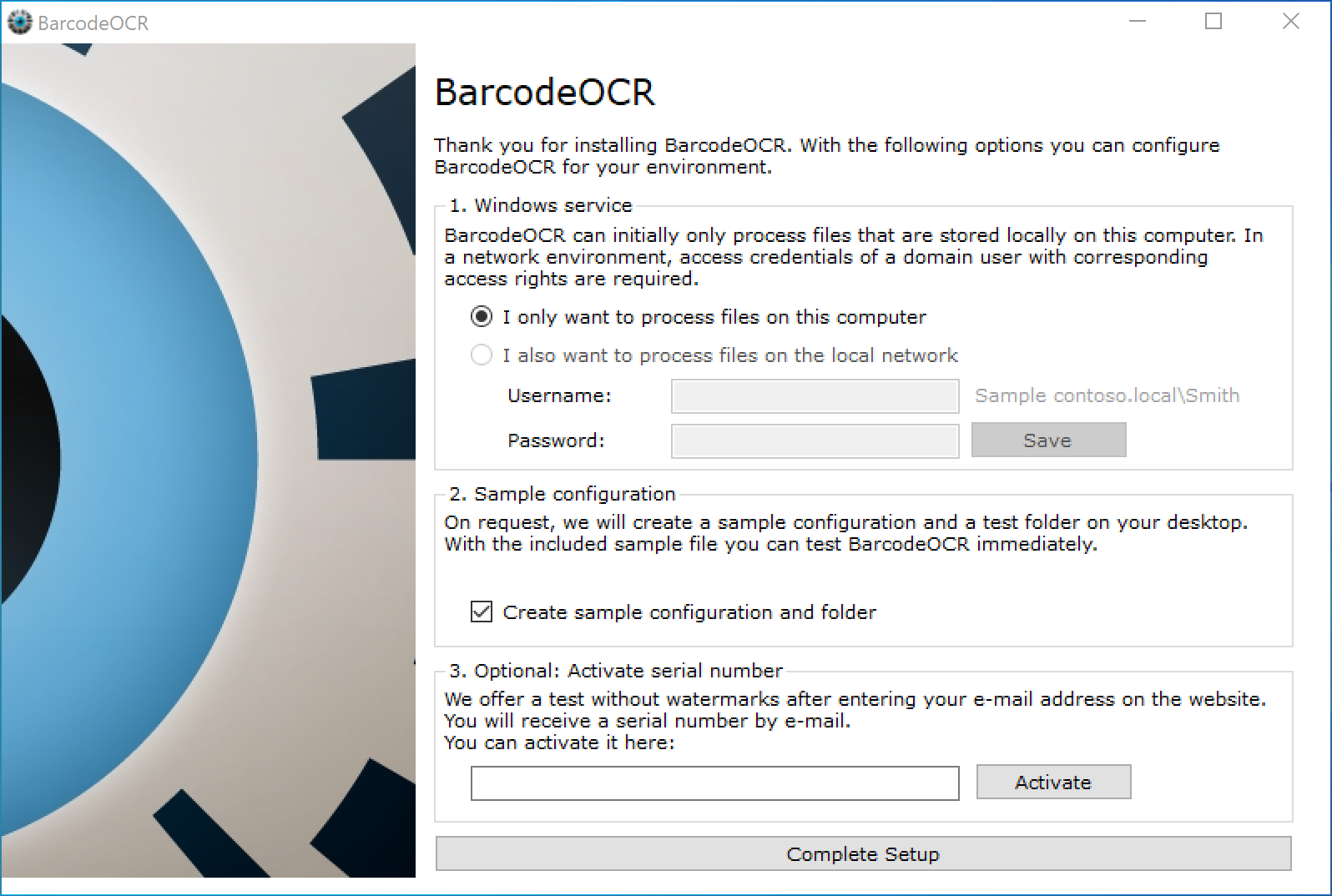
| Section | What you do here |
|---|---|
| 1. Windows service | Select I only want to process files on this computer or I also want to process files on the local network. For network folders, enter the user name and password of a domain user with the required permissions. For details, see Process network folders. |
| 2. Sample configuration | With Create sample configuration and folder, BarcodeOCR creates a sample configuration and a test folder on your desktop. |
| 3. Optional: Activate serial number | Activate a trial serial number here. You receive it by email after entering your email address on the website. |
Click Complete Setup to close the dialog.
Sample configuration
For the sample configuration, BarcodeOCR creates a new folder "BarcodeOCR" on your desktop. It contains the function folders and a PDF file for testing. The file describes various functions and offers a good start with a demo of the functions. Read through the file once and then have it processed.
Help during your trial
With the support assistant, you can quickly open a support request and get help during your trial. Select Help → Open Supportcase.
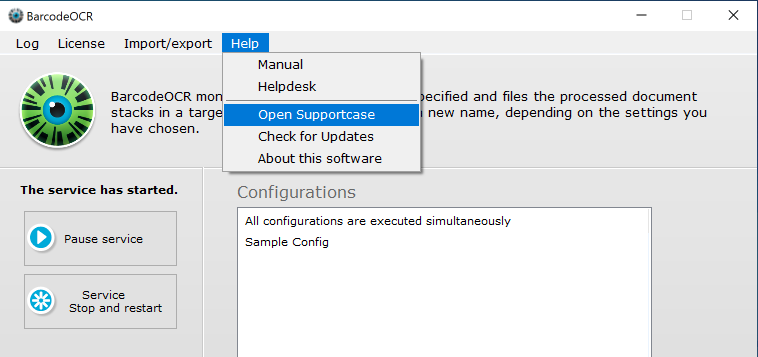
This opens the form for a new help request. BarcodeOCR also shows this window on its own, up to two times, if it detects that you are processing an unusual number of error pages.
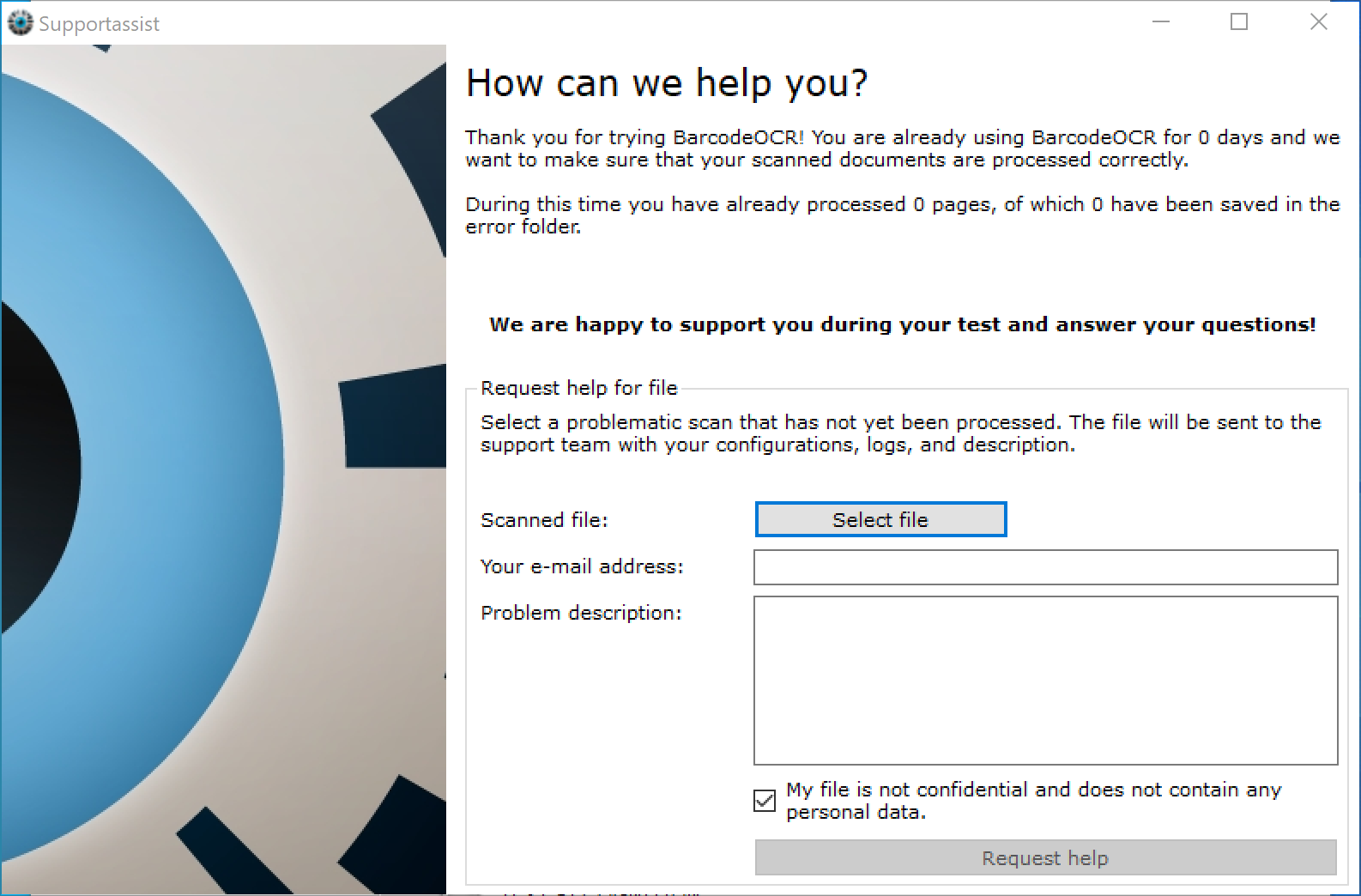
To request help:
- Click Select file and select a scanned PDF file that is not processed successfully. Important: The file must still be unprocessed.
- Enter your email address.
- Briefly describe the problem.
- Click Request help to submit the request.
The support assistant sends the file to the support team together with your configurations, your logs and your description. For other ways to reach support, see Contact support.