Manage configurations
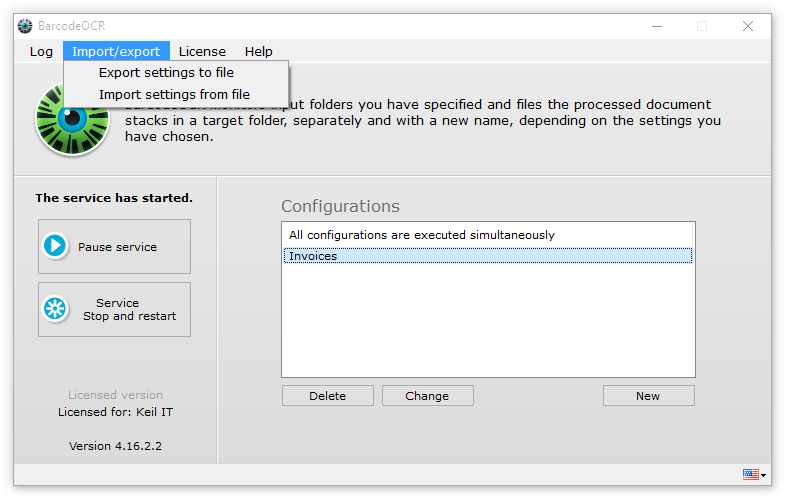
A configuration defines which folders the BarcodeOCR service monitors and how it processes the files in them. The start page lists your configurations on the right. From here you create new configurations, change, clone or delete existing ones, and back up all settings to a file.
Create a new configuration
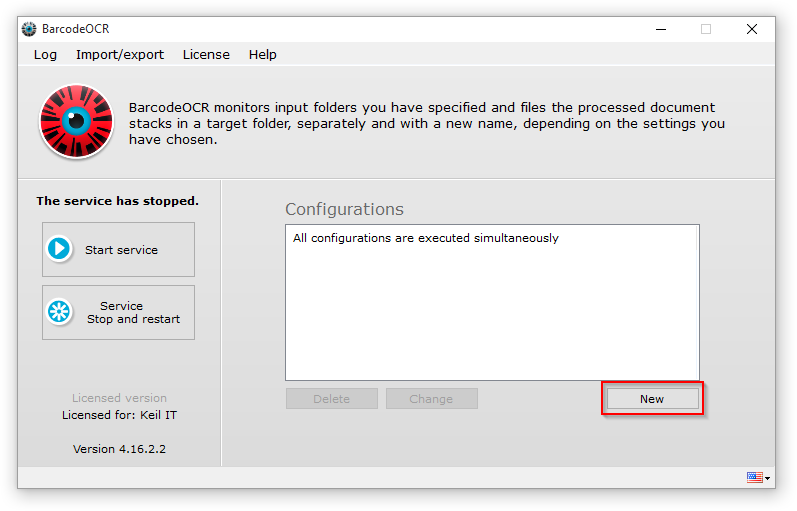
Click New to create your first configuration. The wizard opens and guides you through the settings step by step. It starts with the type of configuration.
Change
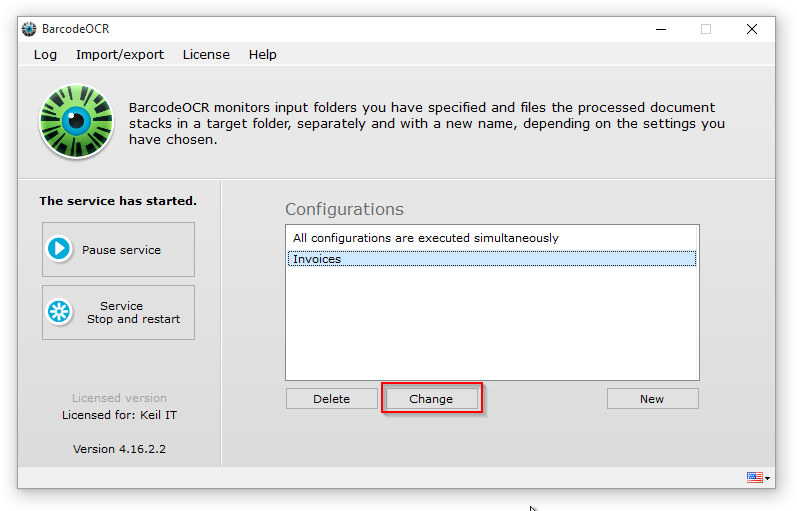
You can change a configuration at any time with the Change button on the start page. You go through the same wizard as when creating a new one. If you cancel the wizard, no changes are saved.
Clone
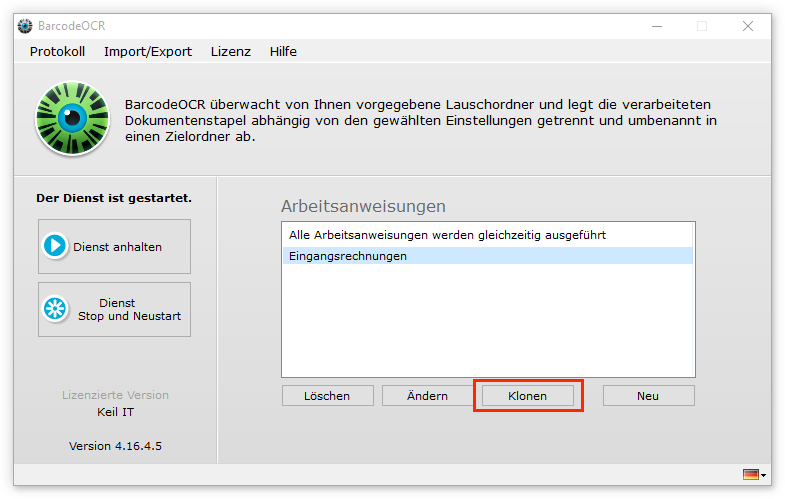
You can use an existing configuration as a template for a new one. Select the configuration you want to use as the basis and click Clone. The wizard for changing a configuration opens, and you adjust the copied settings.
The cloned configuration needs a different input folder. An input folder can only be used in one configuration (see Folders).
Delete
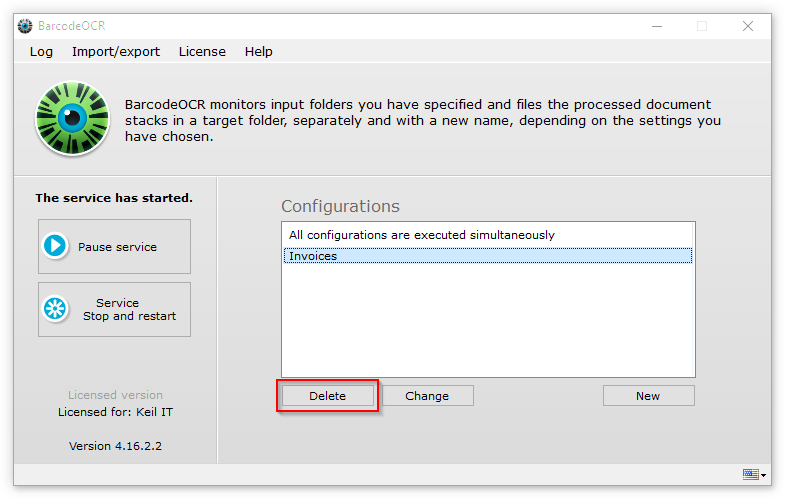
You can delete a configuration at any time with the Delete button on the start page.
Import and export
You can back up your configurations to a file, for example to test settings, to move the software to a different PC, or to make them available to support.
Export: On the start page, open the Import/export menu and choose Export settings to file. Enter a name and a folder for the export. BarcodeOCR backs up all configurations and the current log files to a ZIP file.
Import: Choose Import settings from file and select the previously exported ZIP file. When you confirm the prompt, BarcodeOCR imports the exported configurations.
Importing overwrites the current configurations.
To move BarcodeOCR with all its settings to another computer, see Move to another computer.