Service and logs
BarcodeOCR processes files through a Windows service. The start page shows whether the service is running and lets you start or stop it. The logs show what the service has done and which errors occurred.
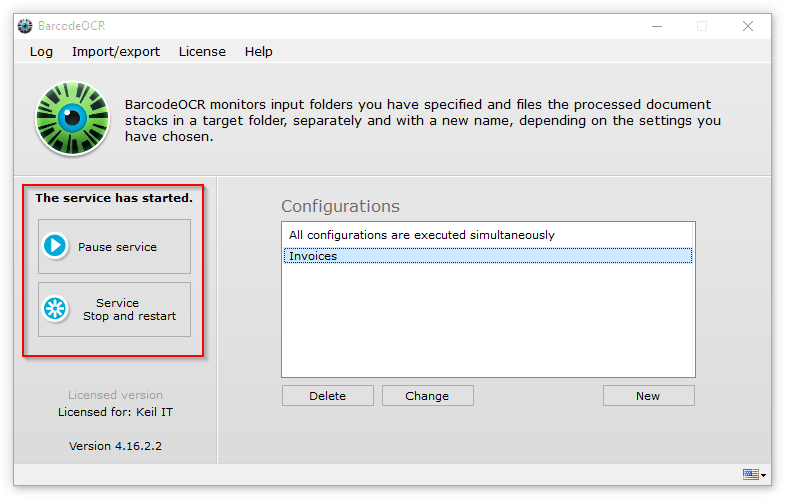
Service control
When you save a configuration, BarcodeOCR restarts the service automatically.
If, for example, folders are not available or the service account is incorrect, the service may not start. You then see a red BarcodeOCR logo on the start page and a message that the service has not started. When the service is running, the logo is green.
- Click Start service to start the service again from the start page.
- Click Pause service to stop the running service.
You can also use the Windows service control.
If the service does not start because it has no access to network folders, assign it a suitable service account. See Process network folders.
Logs
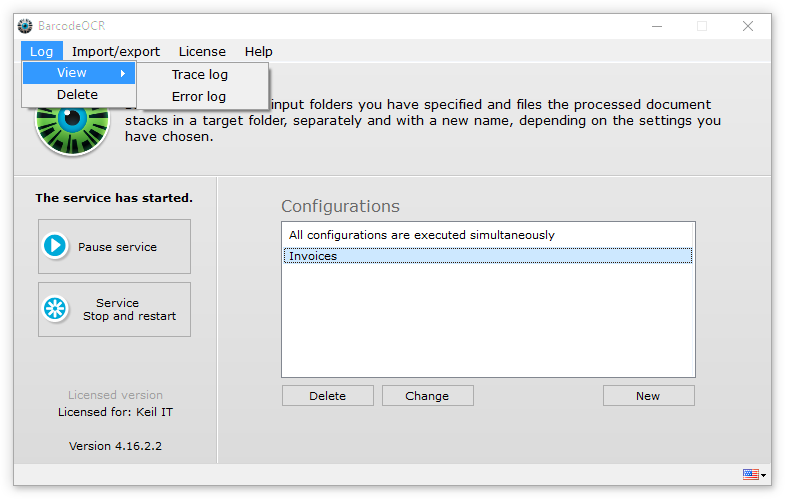
BarcodeOCR records successful and failed actions in log files. You open them on the start page under Log › View.
- The process log (Trace log) records all successful activities of the service.
- The error log (Error log) contains all error messages and naming conflicts that occurred during recognition.
Click Delete to clear the logs.
To find out why a file ended up in the error folder, see The error folder.