Move to another computer
If you want to use BarcodeOCR on a different computer, first deactivate the license on the old PC, then activate it on the new one. You take your configurations and settings along in an export file.
Step by step
-
Note your serial number
On the old computer, open Help → About this software and note the serial number before you deactivate the license. Double-clicking the serial number copies it to the clipboard.
Serial number not at hand?You can also find your serial number on the order confirmation, on the invoice and in the maintenance expiry reminder emails.
-
Install BarcodeOCR on the new computer
Install BarcodeOCR on the target computer in the same program version as on the old computer. Download links and notes on the versions are always available in the release notes. For step-by-step instructions, see Installation.
-
Export the settings on the old computer
Open the Import/export menu and select Export settings to file.
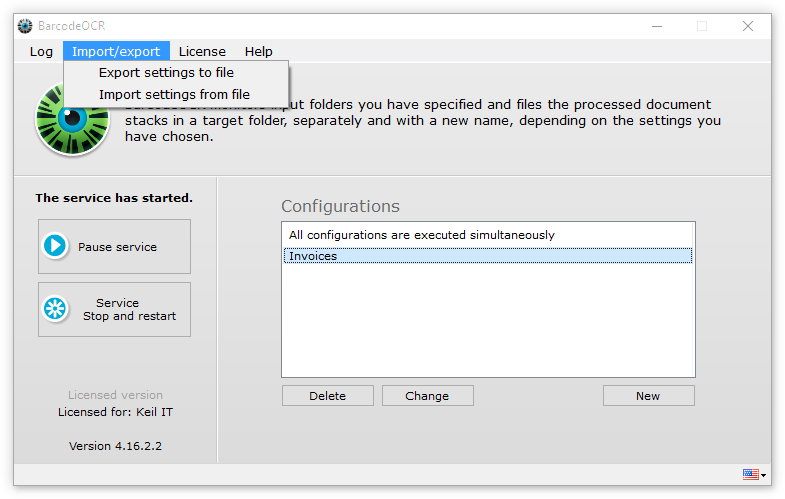
Enter any file name for the file archive. BarcodeOCR saves your settings in this archive.
-
Deactivate the license on the old computer
Open the License menu and select Deactivate license for migration to a different PC. Confirm the prompt to deactivate the license.
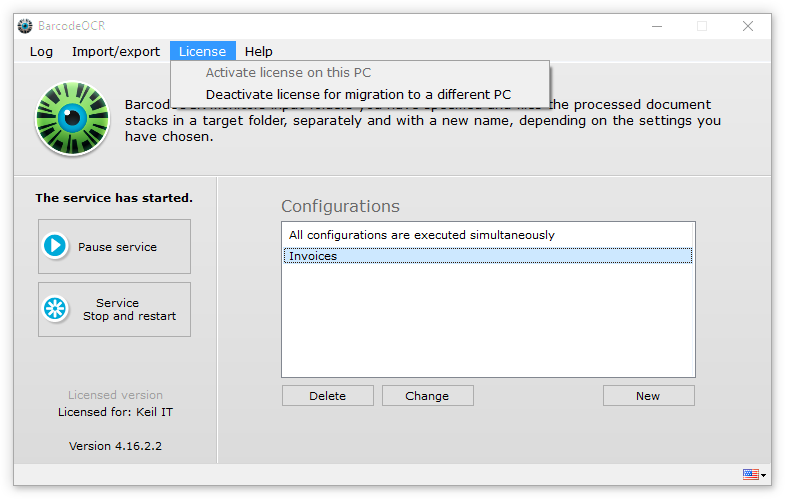
Deactivation requires an internet connection. If there is none, contact support and send your exported settings and your serial number.
The confirmation code is not the serial numberAt the end of the deactivation, BarcodeOCR shows a confirmation code. It looks like a serial number, but it is not the serial number of the software. To activate BarcodeOCR on the new computer, you need the serial number from step 1.
-
Activate the license on the new computer
Activation works the same way as right after the purchase. Enter the serial number from step 1. For instructions, see Activate your license.
-
Import the settings on the new computer
Copy the archive from step 3 to the new computer. There, open the Import/export menu and select Import settings from file. Select the file and click Open. BarcodeOCR then loads your configurations.
Existing configurations are overwrittenThe import replaces the configurations that already exist on the new computer.
-
Start the service and check
Start the service and check the error log for any problems. A common error: The service has not yet been set up to process network folders. To do this, see Process network folders.