Prepare PowerShell
Compared to .bat scripts, PowerShell scripts have one special feature: depending on the configuration and operating system, running scripts is not allowed by default. In that case, BarcodeOCR cannot run the script and logs a message in the error log. So before you use a PowerShell interface (Type 3, Type 4 or Type 5), allow the execution of scripts on your system.
For details on the execution policy, see the Microsoft help page.
For production use, sign the finished script with a trusted code signing certificate. Then reset the execution policy.
Try the sample scripts
The installed sample scripts are not digitally signed. To try them out in a test environment, you need the execution policy Unrestricted. You can find more information on the policy in the sample scripts themselves.
Depending on the system and installation, BarcodeOCR runs the scripts in the x86 or the x64 PowerShell console. So configure both environments.
This setting allows the execution of all PowerShell scripts. If you are unsure, talk to your IT support or IT administrator first.
Set the execution policy
-
Start the Windows PowerShell console as administrator, both the x86 and the x64 version.
-
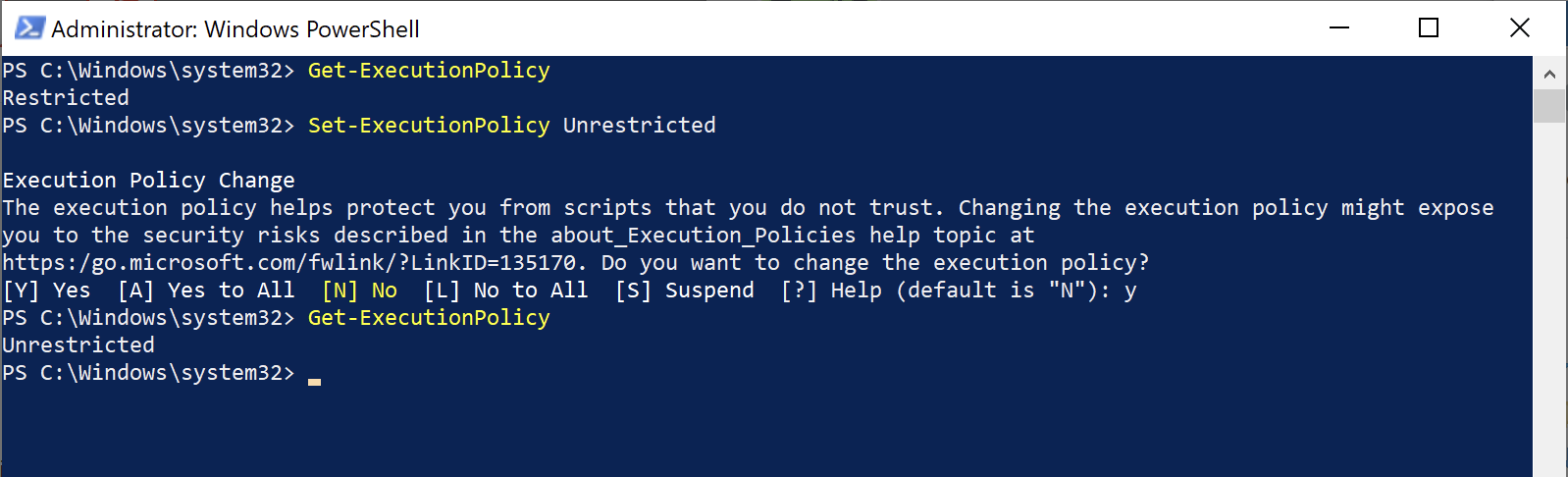
Display the current value. Note it down so that you can reset it later. In the screenshot, it is
Restricted.Get-ExecutionPolicy -
Set the policy to
Unrestrictedand confirm the prompt withy.Set-ExecutionPolicy Unrestricted
Error when the script is called
If PowerShell reports that a file or assembly cannot be loaded when BarcodeOCR calls the script, PowerShell is not loading the .NET Framework v4.0.30319 that BarcodeOCR needs. For the solution, see Troubleshooting.